07. More Environment Actions
Saving and loading environments
A really useful feature is sharing environments so others can install all the packages used in your code, with the correct versions. Let's see all the package-names, including the Python version present in the current environment, using the command:
conda env export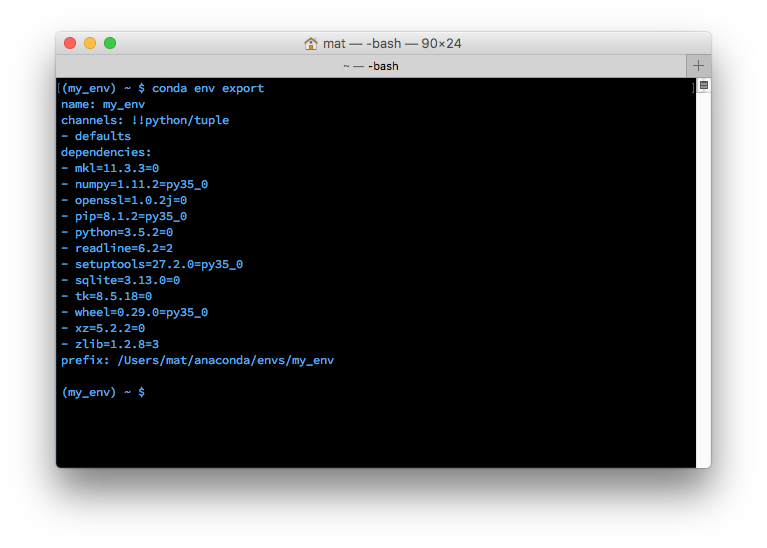
Exported environment printed to the terminal
In the above image, you can see the name of the environment, and all the dependencies (along with versions) are listed. You can save all the above information to a YAML file, environment.yaml, and later share this file with other users over GitHub or other means. This file will get created (or overwritten) in your current directory.
conda env export > environment.yamlThe second part of the export command above, > environment.yaml writes the exported text to the environment.yaml. This file can now be shared using Github repository (or any other means), and others will be able to create the same environment you used for the project.
Create an environment
To create an environment from an environment file, use the following command:
conda env create -f environment.yamlThe above command will create a new environment with the same name listed in environment.yaml.
Listing environments
If you forget what your environments are named (happens to me sometimes), use either of the commands below to list out all the environments you've created.
conda env list
conda info --envs
You should see a list of environments, there will be an asterisk next to the environment you're currently in. The default environment is called base.
List the packages inside an environment
To view the list of packages, run the following command in your terminal / Anaconda Prompt,:
# If the environment is not activated
conda list -n env_name

# If the environment is activated
conda list

# To see if a specific package, say `scipy` is installed in an environment
conda list -n env_name scipy
Removing an environment
If there are environments you don't use anymore, use the command below to remove the specified environment (here, named env_name).
conda env remove -n env_name